 Process Explorer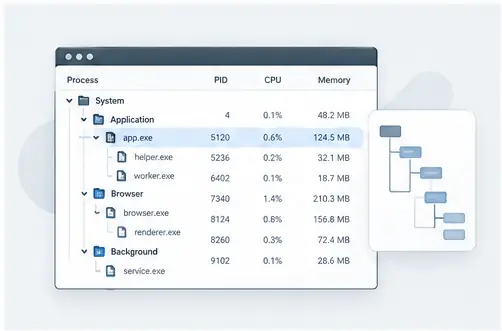
Start with the hierarchy
A process tree is useful because Windows rarely runs an application as one isolated executable. A visible program may create helper processes, browser workers, update components or service-backed processes. Reading the hierarchy gives you a starting point for understanding which process created which child process.
What to look for
Begin at the process you recognize, then move upward to its parent and downward through its children. A parent process can explain why an executable appeared, while child processes can explain why one application has several entries in the list. The tree is especially useful when an application closes but a related component remains active.
A practical troubleshooting workflow
When investigating a problem, first identify the process name and confirm the executable you are actually looking at. Next, inspect its parent and children. Then move to the process properties and associated handles or modules. This keeps the investigation grounded in the process relationship instead of relying only on a familiar name.
Why the tree matters
The process tree does not automatically prove that a relationship is good or bad. It provides context. A browser, updater or developer tool may legitimately create several processes. The value is that you can see the structure before deciding what deserves further investigation.
Read the hierarchy without jumping to conclusions
A process tree is a map of relationships, not a verdict. A browser, editor, installer or development environment may create several legitimate helper processes. Use the hierarchy to ask better questions: who launched this process, what did it launch, and does the relationship match the application you expected? If a process appears unexpectedly, combine the tree with its properties and other evidence before deciding what it means.
Practical checklist
Identify the process you recognize, move upward to its parent, expand children, note unusual names or paths, and then inspect the relevant process properties. Save a note of what you observed before you terminate or suspend anything.