 Process Explorer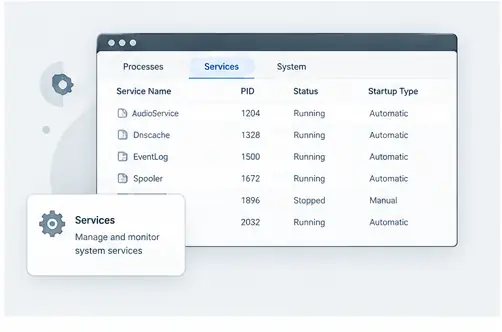
Services and processes
Windows services are managed differently from ordinary desktop applications, but they still appear in the running process landscape. A service can host one component or multiple services can share a host process. Understanding that relationship is useful when diagnosing service behavior.
Find the responsible process
If a service appears active but is not behaving as expected, identify the process that hosts or represents the activity. Then inspect its parent, children and resource usage. This can help distinguish a service problem from an unrelated process that happens to be active at the same time.
Shared hosts need care
Some Windows components share hosting processes. Do not assume that stopping or terminating one process affects only one service. Confirm what the process is responsible for and use normal Windows service-management controls when changing service state.
Use process information as context
Process Explorer is most useful here as an inspection tool. It can add detail to the service-management information you already have, helping you understand which executable and process relationships sit underneath the service behavior.
Use process relationships to understand services
Windows services can be easier to reason about when you can see the processes associated with them. Process Explorer can add process-level context when a service appears to be consuming resources or behaving unexpectedly. The goal is to understand the relationship before changing the service or its process.
Practical checklist
Identify the affected service, locate its associated process, inspect the parent and child relationships, review resource activity, and check loaded modules or handles when the problem points toward a dependency.