 Process Explorer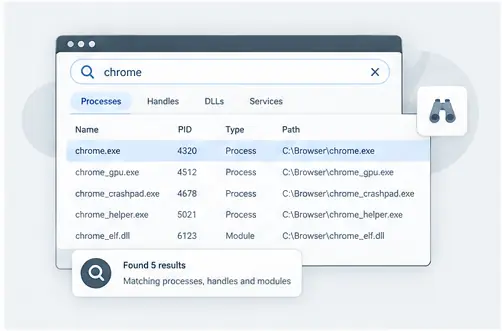
Why search is useful
A busy Windows machine can contain a long list of processes and associated resources. Manual scanning becomes inefficient when you already know the file name, process name or handle you are looking for. Search lets you start from the clue you already have.
Search by the strongest clue
If Windows reports that a particular file is open, search for that file name. If you know the executable, search for the process. If you are investigating a module, search for its name. Using the most specific clue usually reduces noise and makes the next step obvious.
Move from result to context
A search result is only the beginning. Open the relevant process, review its parent and children, then inspect handles or modules as appropriate. This creates a repeatable workflow: clue, result, context, verification.
Avoid assumptions
Search can find a matching name, but a matching name does not establish identity by itself. Verify the process path and surrounding information before drawing conclusions. This is particularly important for common executable names or generic DLL names.
Search from a clue you already have
The fastest investigation usually starts with a concrete clue: a filename, directory, process name, handle or module. Search lets you move from that clue to the processes connected to it. This is especially useful on busy machines where manually scanning a long process list would be slow and error-prone.
Practical checklist
Write down the exact clue, search it, review the matching processes, inspect the relevant process relationship, and then open properties or handles for the strongest match. Repeat the search with a narrower term when the result set is too broad.